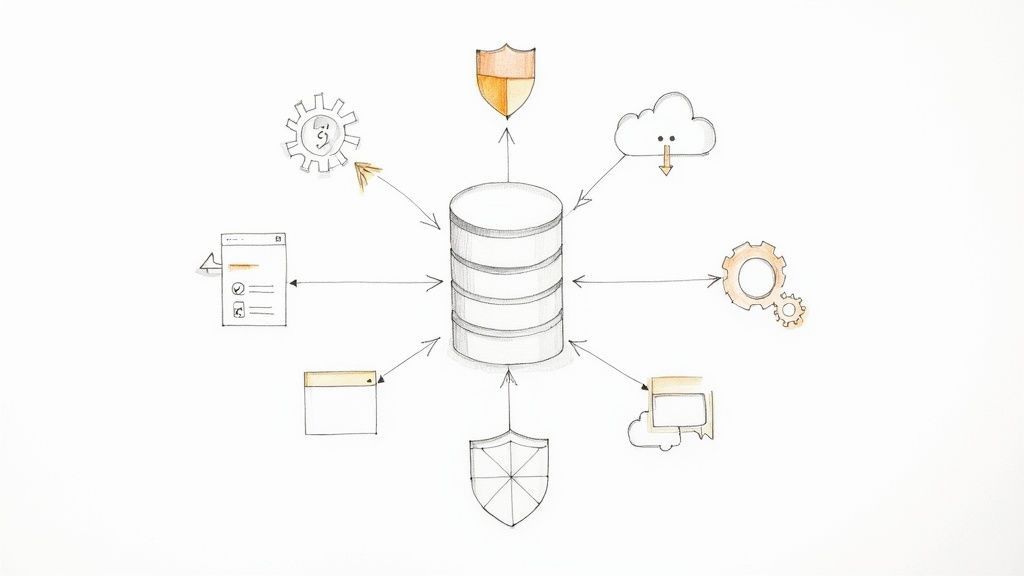
Backing up a SQL database isn't just about making a copy; it's about creating a lifeline you can grab when something goes wrong. At its core, you're using a mix of full, differential, and transaction log backups to build a safety net. This combination is your best defense against everything from a fried hard drive to a fat-fingered DELETE query, making a solid strategy an absolute must for business continuity.
Why Your SQL Database Backup Strategy Matters

It’s tempting to treat backups as just another item on the IT checklist. Set it and forget it, right? But I've seen firsthand how a weak or missing backup plan can become the single biggest point of failure for a business. The risks are far more insidious than a server simply dying.
Think about silent data corruption that slowly creeps through your tables for weeks, only noticed long after your good backups have been cycled out. Or, the scenario we all dread: a ransomware attack that locks up your entire production environment. Without a clean, isolated backup, you’re stuck choosing between paying a hefty ransom (with zero guarantee of getting your data back) or rebuilding from scratch.
Even a simple mistake, like an accidental DELETE without a WHERE clause, can instantly vaporize mission-critical data. The real-world costs are massive—lost revenue, shattered customer trust, and even hefty fines under regulations like GDPR or HIPAA. This is precisely why knowing the tools of the trade is so important.
The Three Pillars of SQL Backups
Your entire defense against data loss rests on three fundamental types of backups. Each plays a specific role, and any serious strategy will use them in concert.
-
Full Backups: This is your bedrock. A full backup is a complete snapshot of the entire database—all data, objects, and even parts of the transaction log. It's a self-contained restore point you can always fall back on.
-
Differential Backups: These are much faster to create than a full backup because they only capture data that has changed since the last full backup. To get back up and running, you'd need that last full backup plus the latest differential.
-
Transaction Log Backups: This is your key to precision. It captures all transactions since the last log backup was taken, which allows for true point-in-time recovery. You can restore the database to the exact moment right before disaster struck.
I’ve seen companies rely only on nightly full backups, thinking they’re covered. But if a critical failure hits at 4 PM, they’re still facing a full day of data loss. Weaving in differential and log backups closes that dangerous gap.
By layering these methods, you build a much more resilient system. For instance, a weekly full backup, daily differentials, and transaction log backups every hour is a common and effective approach. This strategy strikes a smart balance between minimizing potential data loss and managing performance and storage costs, turning a simple chore into a proactive business continuity plan.
Choosing the Right SQL Backup Type
To help you decide which backup strategy fits your specific needs, here’s a quick reference guide.
| Backup Type | What It Captures | Ideal Use Case | Recovery Impact |
|---|---|---|---|
| Full | The entire database, including data, objects, and part of the transaction log. | Establishing a baseline for recovery. Essential, but done less frequently (e.g., weekly) due to size. | Simplest restore process, but can lead to significant data loss if it's your only backup. |
| Differential | All data that has changed since the last full backup. | Reducing restore time by requiring only the last full and one differential backup. Great for daily backups. | Faster to restore than applying many log backups. Data loss is limited to the time since the last differential. |
| Transaction Log | All transaction log records generated since the last log backup. | Achieving point-in-time recovery for critical databases where any data loss is unacceptable. | Most flexible recovery, allowing restoration to a specific minute. Requires an unbroken chain of log backups. |
Ultimately, a robust plan for backing up a SQL database isn't about picking one type; it's about combining them to meet your specific Recovery Point Objective (RPO) and Recovery Time Objective (RTO).
If you’re more comfortable working with a visual interface than a command line, the Azure Portal is the most intuitive way to handle your SQL database backups. While Azure SQL does a great job of automating backups right out of the box, you really need to get in there and configure the settings yourself. That's how you make sure your backup strategy actually lines up with your business's real-world needs.
It's one thing to know a backup exists; it's another thing entirely to control how often it happens, how long it's kept, and where it's stored for disaster recovery. You’ll find all these settings by navigating to your Azure SQL database and looking for the data management or backup policies. This is where you can fine-tune your entire data protection plan without touching a single line of script.
Getting Retention and Storage Right
Once you’re in the backup policy section, you'll see two key areas: short-term and long-term retention. By default, Azure will hang onto backups for active databases for a set period, but you can, and often should, extend this. For a critical production database, bumping the default 7-day retention up to 35 days is a common and wise move.
This is also where you'll make one of the most important decisions for your disaster recovery plan: storage redundancy. Azure gives you a few options, and your choice directly impacts how resilient your data is.
- Locally-redundant storage (LRS): This is the basic tier. It keeps three copies of your backups in a single data center. It's cheap, but if that facility has a major problem, you're out of luck.
- Zone-redundant storage (ZRS): A solid middle ground. ZRS copies your backups across three different availability zones within the same region, protecting you from an outage affecting a single zone.
- Geo-redundant storage (GRS): This is the gold standard for business continuity. GRS copies your data to a secondary region, often hundreds of miles away from the primary. It’s your best bet against a massive regional disaster.
Honestly, for any serious production database, GRS is the only way to go. The small increase in cost is negligible compared to the peace of mind you get from knowing your data can survive a regional catastrophe.
The Power of a Point-in-Time Restore
The real magic of these automated backups shines when something inevitably goes wrong. Let's say a bad deployment at 2:15 PM messes up a bunch of customer records. With Azure's point-in-time restore (PITR) feature, you can bring the database back to its exact state at 2:14 PM, right before the error occurred.
The portal makes this process incredibly straightforward.
Pro Tip: Always restore to a new database. Never overwrite the live one. This keeps the corrupted database intact for post-mortem analysis so you can figure out what went wrong without risking the original data.
This powerful restore capability is possible because of how Azure layers its backups. It’s not just one big daily dump; it’s a sophisticated combination of full, differential, and transaction log backups working in concert.
As you can see, Azure handles all this complexity behind the scenes. This constant stream of backups is what gives you that granular control, allowing you to rewind to a specific minute and save the day.
Automating Backups with PowerShell and CLI
While the Azure Portal is great for managing backups with a few clicks, most developers, DBAs, and DevOps pros I know spend their days in the command line. When you need to integrate data protection into your CI/CD pipelines or infrastructure-as-code (IaC) workflows, automating how you back up a SQL database is non-negotiable.
This is exactly where tools like PowerShell and the Azure CLI come into their own. They give you the scripting power to manage backups across dozens of databases, keep your configurations consistent, and schedule everything without ever touching a GUI. If you're serious about DevOps, getting comfortable with these tools is a must.
Kickstarting Backups with PowerShell
PowerShell is packed with robust cmdlets designed for managing Azure resources, and Azure SQL databases are no exception. Of course, before you can run anything, you need to have the right modules installed. If you're new to this, there's a great guide on how to set up the Azure PowerShell module that will get you up and running quickly.
Once your environment is ready, triggering a manual backup is surprisingly simple. This is a lifesaver right before a big deployment or a tricky data migration, as it gives you an instant, reliable restore point.
Here’s a real-world example of how to kick off a long-term retention backup:
$resourceGroupName = "YourResourceGroup"
$serverName = "your-sql-server"
$databaseName = "YourProductionDB"
$backupName = "pre-deployment-backup-$(Get-Date -f yyyyMMddHHmm)"
Backup-AzSqlDatabase -ResourceGroupName $resourceGroupName -ServerName $serverName
-DatabaseName $databaseName -BackupLongTermRetention
-LongTermRetentionBackupName $backupName
Notice how this script doesn't just create a generic backup. It dynamically names it with the current date and time. This is a small but critical best practice that makes finding the exact restore point you need so much easier when things go wrong.
Scripting your backups shifts your entire data protection strategy from reactive to proactive. You can bake these commands directly into deployment scripts, ensuring a fresh backup is always taken before you push a single change to production. Trust me, this small step can save you from a world of hurt.
The image below shows a common tiered backup strategy, which is a great way to think about minimizing data loss by combining full, differential, and transaction log backups.
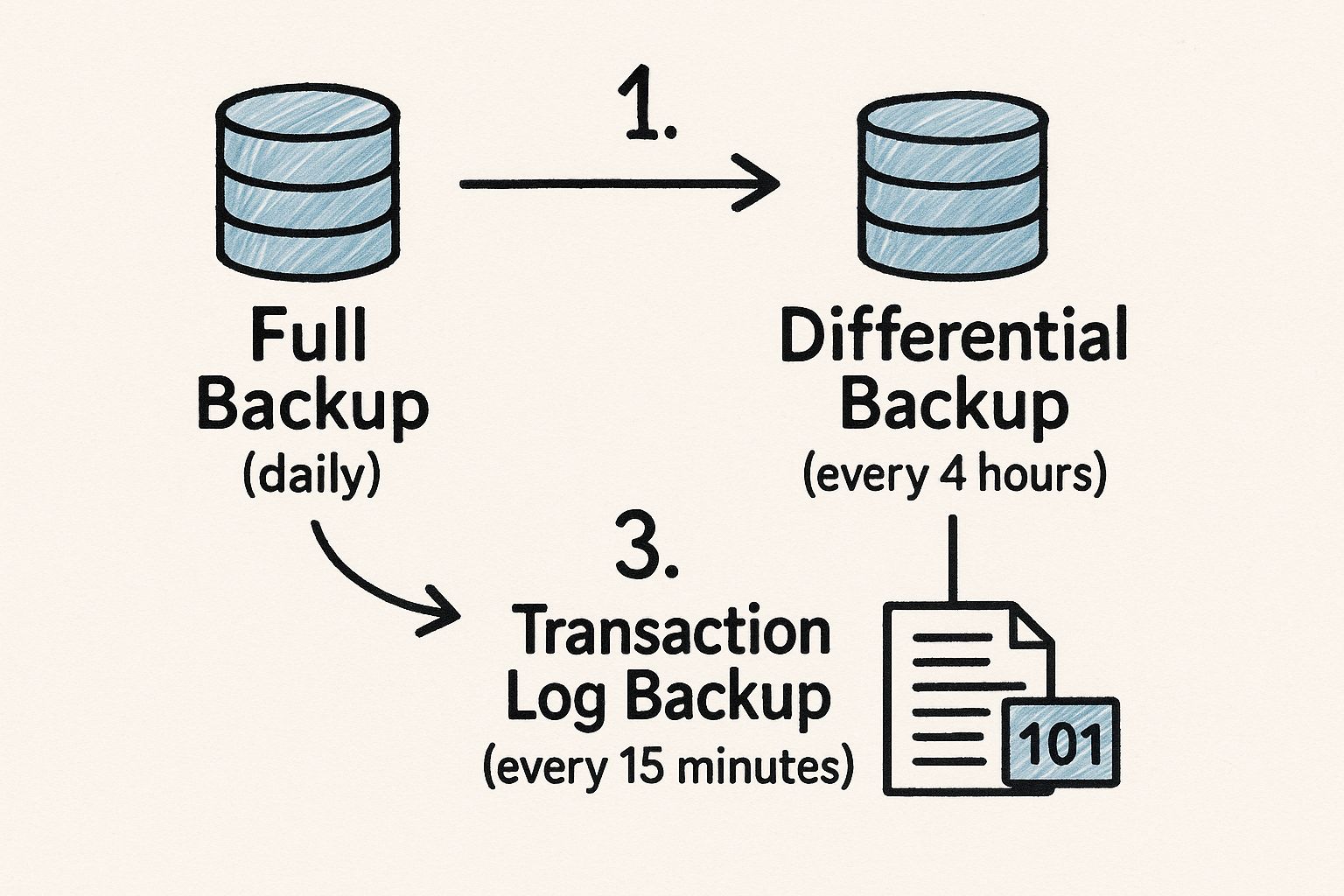
This layered approach gives you a resilient recovery plan that balances storage costs and performance with the ability to perform fine-grained, point-in-time restores.
Using the Azure CLI for Scalable Management
If you're more comfortable in a cross-platform environment or just prefer a more concise syntax, the Azure CLI is a fantastic alternative. It’s often the go-to for quick, one-off tasks and is incredibly easy to integrate into standard shell scripts.
Creating a long-term retention backup with the Azure CLI is just as straightforward.
Here’s how you’d do it:
az sql db ltr-backup create
–resource-group YourResourceGroup
–server your-sql-server
–name YourProductionDB
This single command accomplishes the same thing as our PowerShell script, firing off an on-demand backup that gets stored based on your long-term retention policy.
The real power here is in scheduling. You can set up a cron job on a Linux box or use a tool like Azure Automation to run these scripts automatically. This creates a completely hands-off system for backing up your SQL database, making your data protection strategy as robust and scalable as the rest of your cloud infrastructure.
Boosting Backup Performance and Efficiency

Running backups, especially on a large, heavily-used database, can feel like a necessary evil. It’s a resource hog, tying up I/O and CPU that could be serving your applications. This is why just doing a backup isn't enough—you have to make the whole process as fast and lean as possible to avoid dragging down system performance.
One of the most effective tools in our arsenal for this is backup compression. The idea is simple: by compressing the backup file as it’s being created, you shrink its size dramatically. Less data to write means less disk I/O and a much faster backup job. For anyone managing a stack of services, like those we cover in our guide on what is Azure App Service, keeping these background processes optimized is crucial for overall system stability.
A Better Way to Compress Backups
For a long time, the go-to compression algorithm in SQL Server was MS_XPRESS. It got the job done, but technology marches on. The big news in the world of backing up a SQL database is the arrival of the ZSTD algorithm, which offers a much better mix of raw speed and compression ratio.
The performance leap is significant. In tests on a 25 GB database, ZSTD hit a throughput of 714.5 MB/sec, leaving the old MS_XPRESS algorithm in the dust at around 295 MB/sec. This isn't just a small bump; it’s a massive improvement that can literally slash your backup times in half.
Putting this to work is surprisingly easy. All you have to do is specify the algorithm in your T-SQL command.
BACKUP DATABASE YourDatabase
TO DISK = 'D:\Backups\YourDatabase.bak'
WITH COMPRESSION (ALGORITHM = ZSTD);
That one simple change can make a huge difference to your backup efficiency without forcing you to overhaul your existing scripts.
Finding the Right Compression Balance
Of course, compression isn’t free. It’s a classic trade-off: the smaller you make the file, the more CPU power it takes to compress it. While ZSTD is incredibly efficient, you still need to find the right balance for your particular server and workload.
Don’t just crank up the compression level to the max and walk away. The real trick is to test different settings during a low-traffic window. Keep an eye on your CPU usage and how long the backup takes. You're looking for that sweet spot where you get a great size reduction without choking your production workload.
For most production servers, the default compression level is a fantastic starting point, giving you a great blend of speed and space savings. If you have a machine with plenty of CPU cycles to spare, you might experiment with higher levels to squeeze those backup files even smaller, saving on storage costs and I/O.
Here’s a quick mental checklist to help you decide:
- Low CPU Headroom: Stick with the default compression level. You'll still get a major boost over uncompressed backups with very little performance hit.
- Moderate CPU Headroom: The default is probably perfect, but you could try a slightly higher level. This is the ideal zone for most servers.
- High CPU Headroom: Go ahead and test higher compression levels. This is a great option for dedicated backup servers or during planned maintenance windows when CPU contention isn't a worry.
By taking a strategic approach to compression, you can turn your backups from a resource-intensive chore into a fast, efficient, and almost invisible process. It saves you time, it saves you storage, and it keeps your critical systems running smoothly.
Building a Recovery Plan You Can Trust
Having a perfect strategy for backing up a SQL database is only half the battle. A backup you’ve never actually tested is just a hopeful theory, not a real asset you can count on. The true test of your backup strategy comes down to one thing: can you restore your data quickly and correctly when everything hits the fan?
This is where I see a lot of teams stumble. They get the backup jobs running, see the "succeeded" status, and assume their data is safe. But a rock-solid recovery plan requires practice, clear documentation, and a healthy dose of paranoia. The goal is to make a full restore feel like a boring, predictable routine, not a panicked, high-stakes scramble.
Regularly testing your backups in a non-production environment isn't just a good idea—it's absolutely essential. It’s the only way you'll find the hidden gotchas before a real emergency forces them into the light.
Simulating Real-World Recovery Scenarios
To really trust your plan, you need to practice different kinds of restores. Each scenario tests a different part of your backup chain and gets your team ready for the specific problems they might actually face.
At a minimum, you should be running these drills:
- Full Database Restore: The classic disaster test. Can you take your latest full backup and spin up a database on a fresh server? This is your baseline for a total-loss scenario.
- Point-in-Time Recovery (PITR): This one is more subtle. Pretend some bad data was written at 2:15 PM. Can you restore the database to its state at 2:14 PM? This drill validates your entire chain—full, differential, and transaction log backups.
A recovery plan is a practiced skill, not just a feature. Regularly walking through a restore builds muscle memory and exposes weaknesses in your process, turning a potential crisis into a manageable task.
When you're running these tests, keep an eye out for the common tripwires. I’ve seen countless restores fail because of simple, avoidable mistakes like trying to restore a SQL Server 2019 backup onto a 2017 instance, or forgetting about dependencies like linked servers and specific user permissions. Document every single step and dependency as you go.
Documenting a Bulletproof Procedure
Your recovery documentation needs to be so clear that someone who has never seen your environment could follow it in the middle of a crisis. It should include everything: server names, specific file paths, and the exact T-SQL commands needed for the restore. Good documentation empowers the whole team and is a key part of professional growth. For anyone looking to formalize their skills, you can explore how to get Microsoft certified to really prove your expertise.
Here's a pro-tip that's often missed: enable native backup compression. This has been a standard feature since SQL Server 2008 and it's a game-changer. It's not uncommon to see backup files shrink by 50% to 70%. This does more than just save a ton on storage; it also reduces I/O, which makes both your backup and restore operations run much faster. By building these kinds of efficiencies into your plan, you ensure your recovery process is not just reliable, but fast.
Frequently Asked Questions About SQL Backups
When you're deep in the trenches of managing SQL databases, certain questions always seem to pop up. Whether you've been a DBA for decades or are just getting your feet wet, getting solid answers is the first step toward a data protection strategy you can actually count on.
A classic question I hear all the time is about transaction log backups. People wonder, "If I'm already doing daily full and differential backups, are log backups really necessary?" For any database running in the Full or Bulk-Logged recovery model, the answer is an emphatic yes. If you ever need to restore your database to a specific moment—say, right before a user accidentally wiped out a critical table—transaction log backups are your only option.
How Often Should I Test My Backups?
This is another big one. While there isn't a universal rule, the industry standard is to test your restore process at least quarterly. But for your most important, mission-critical databases, I’d strongly recommend bumping that up to monthly.
The real answer is: test your backups often enough that the process feels routine, not like an emergency. If a restore process makes your team nervous, you aren't testing it enough.
Running these tests regularly does more than just verify the backup file. It keeps your documentation sharp and builds the team's muscle memory, so when a real crisis hits, everyone can execute the recovery plan calmly and correctly. It’s also great for catching those sneaky environmental changes—like updated permissions or server version conflicts—before they turn a minor issue into a major outage.
Can I Restore a Single Table from a Backup?
This is a common source of frustration. With native SQL Server backups, you can't simply pull a single table out of a backup file. Unlike systems such as PostgreSQL, SQL Server’s BACKUP DATABASE command is an all-or-nothing affair.
So, how do you get just one table back? You have to use a specific workaround:
- First, restore the entire database backup, but do it on a different server or give it a new name on the same server to avoid overwriting your live database.
- Next, copy the table you need from that restored (temporary) database back into your production environment. You can use a
SELECT...INTOstatement or an SSIS package for this. - Finally, once you've got your data, drop the temporary database to clean up.
This multi-step process really drives home why having a well-rehearsed recovery plan is absolutely essential when you're working with SQL Server.
Ready to master Azure development and prove your skills? At AZ-204 Fast, we provide the focused tools you need—interactive flashcards, dynamic practice exams, and detailed cheat sheets—to conquer the AZ-204 certification exam with confidence. Start your accelerated learning journey with us today!
Leave a Reply